
Overview
Sharing credentials to our support team is a critical bridge for resolving issues that cannot be replicated in a standard environment. Providing direct access allows our team to diagnose the issue and provide a resolution immediately.
If you have root/admin access, we recommend using the Support Access feature in your Softaculous Admin Panel.
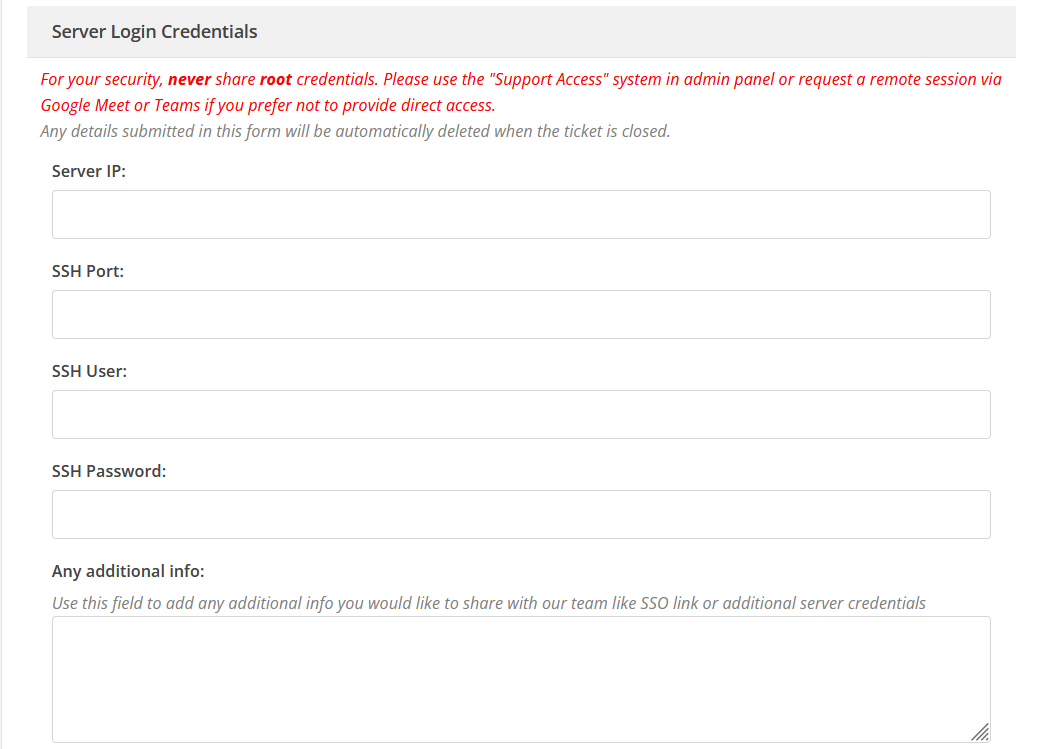
- All credentials must be entered exclusively in the Server Login Credentials form fields to ensure they are handled by an encrypted database layer.
- Credentials will be deleted when the ticket is closed.
- For your protection, plain-text credentials in the chat, message body, or anywhere else are no longer permitted and will be automatically redacted.
Note : We strongly recommend changing shared login credentials after resolution.
New Ticket
When you submit a new support request through our portal, you will see a dedicated Server Login Credentials section. Use it to enter your server or hosting credentials.
Existing Ticket
If your issue requires a deeper investigation, you might need to provide server access to an existing ticket.
Follow one of the below methods to access your ticket and edit it to add the credentials.
Using Softaculous Login Credentials
If you have a Softaculous account, follow these steps:
1. Log in to the support portal using Softaculous account login details.
2. Locate your active ticket.
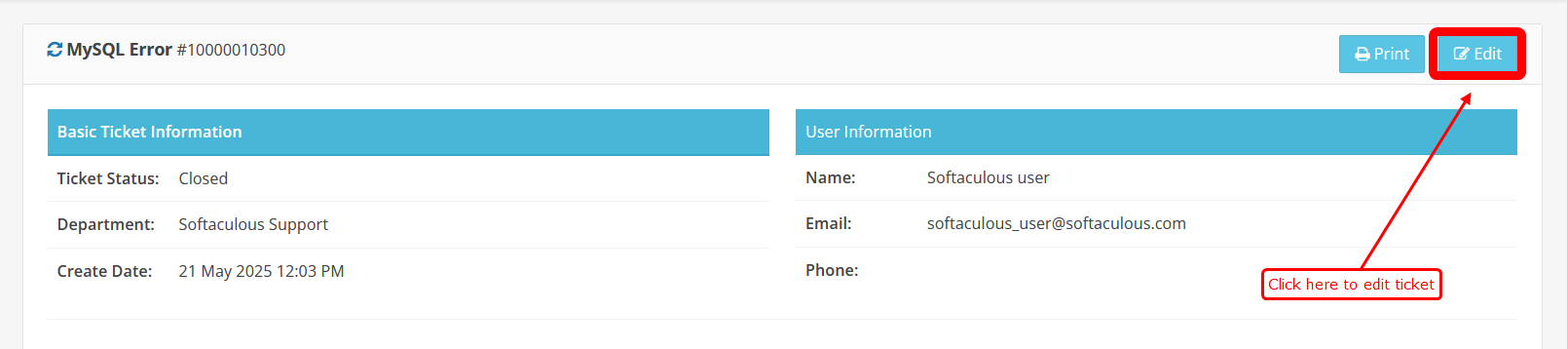
3. Click the Edit button at the top-right of the page. This will open the ticket’s configuration where you can find the Server Login Credentials section.
4. Enter your credentials and click on the Update button.
Using Access Link
You can generate the ticket access link from the Check Ticket Status page, where you have to enter your ticket id (you must have received the ticket id on email when the ticket was created) and email address and click on the Email Access link button.
Click on the access link to auto login into the ticketing portal and follow these steps:
1. Locate your active ticket.
2. Click the Edit button at the top-right of the page. This will open the ticket’s configuration where you can find the Server Login Credentials section.
3. Enter your credentials and click on the Update button.